Free tool · Instagram Reels
Instagram Reels safe zone: template and checker
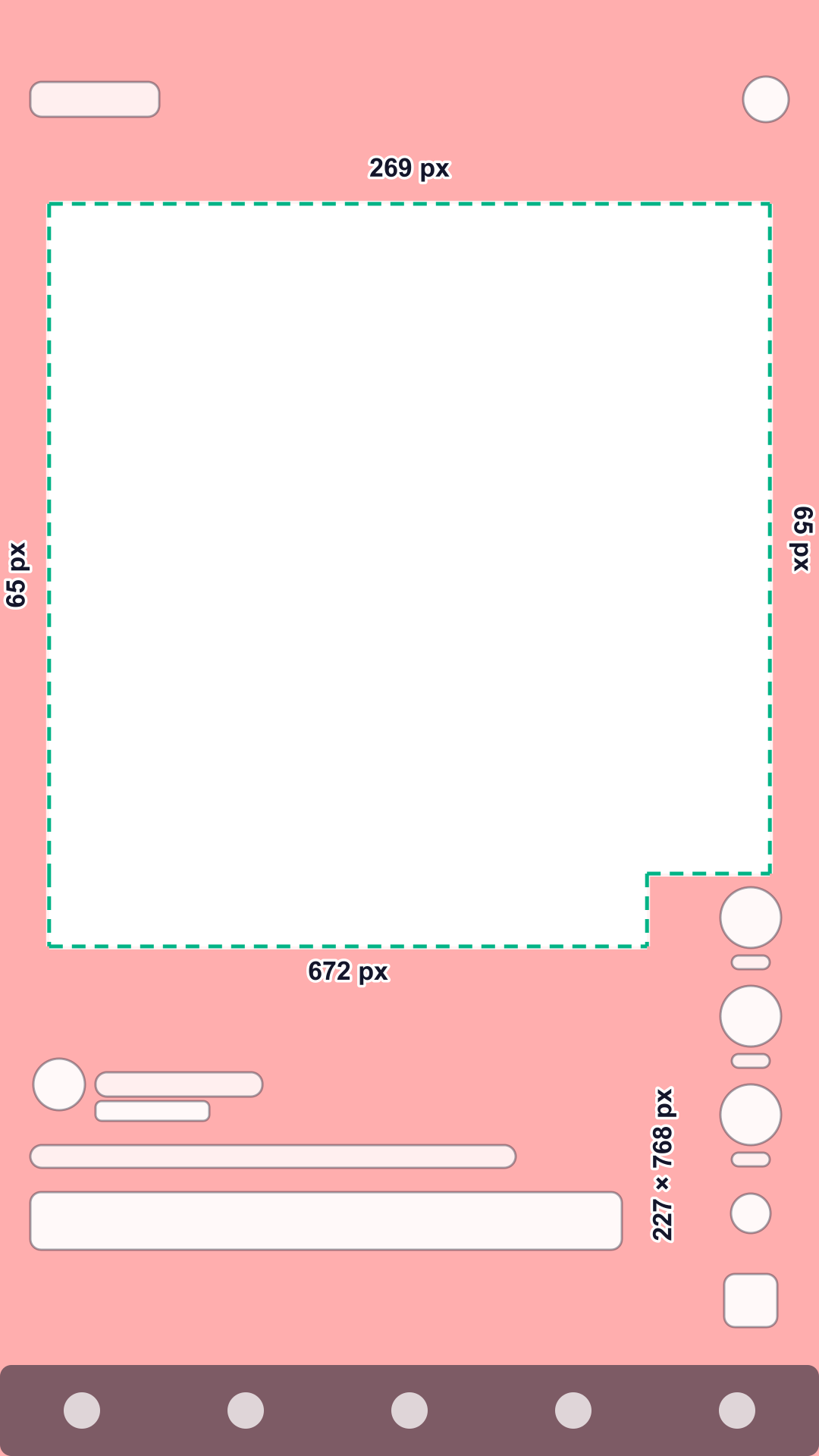
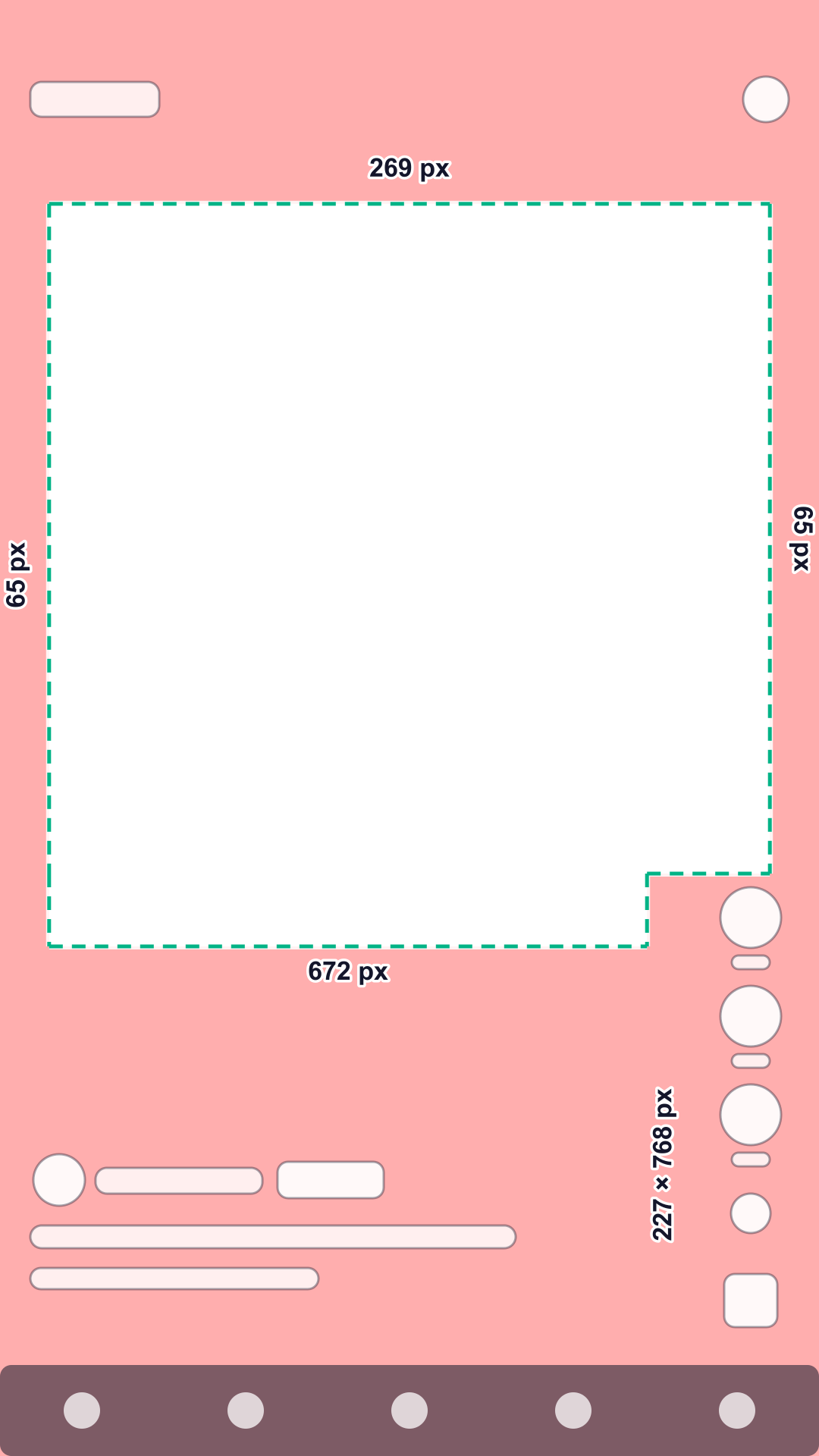
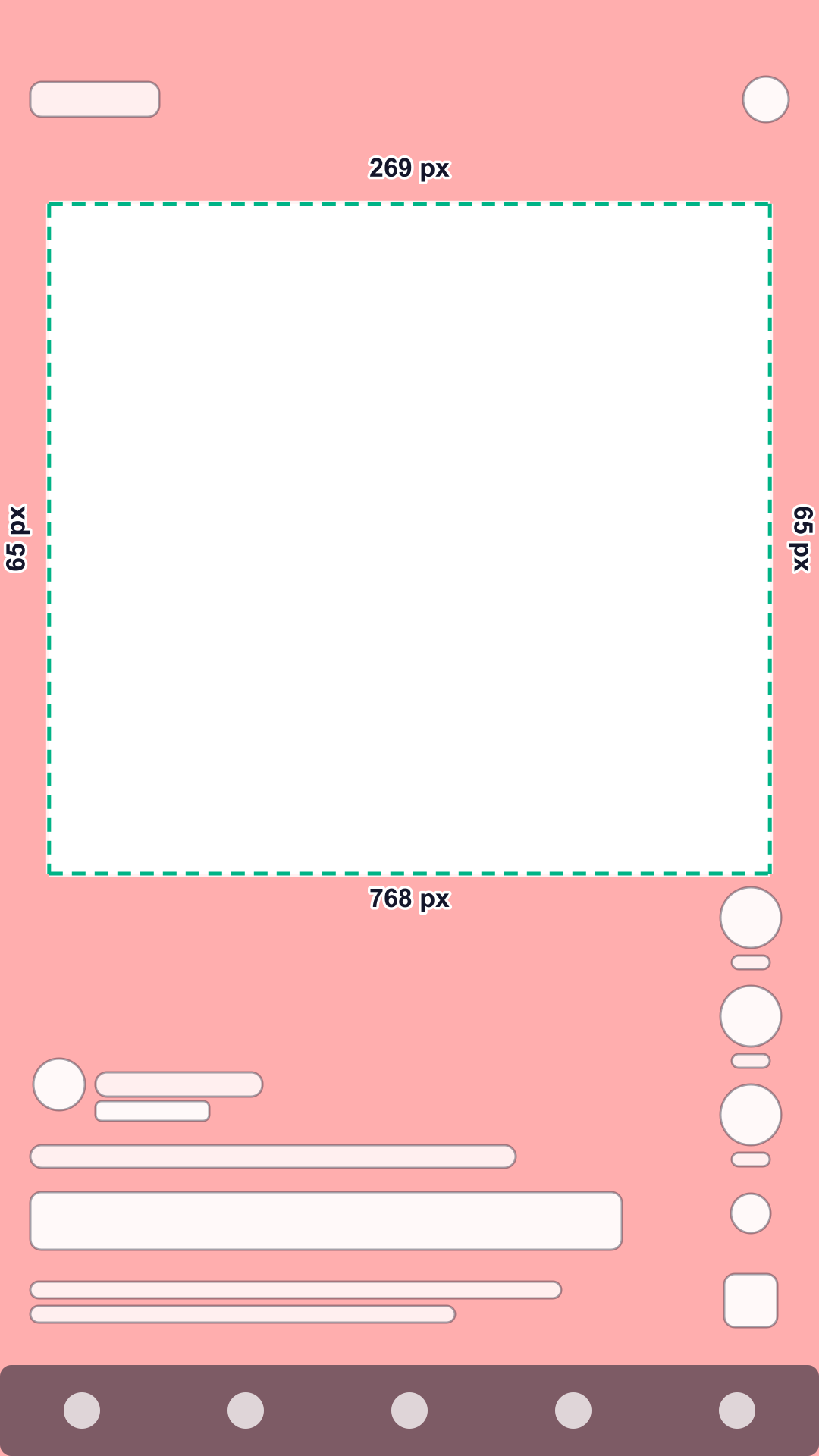
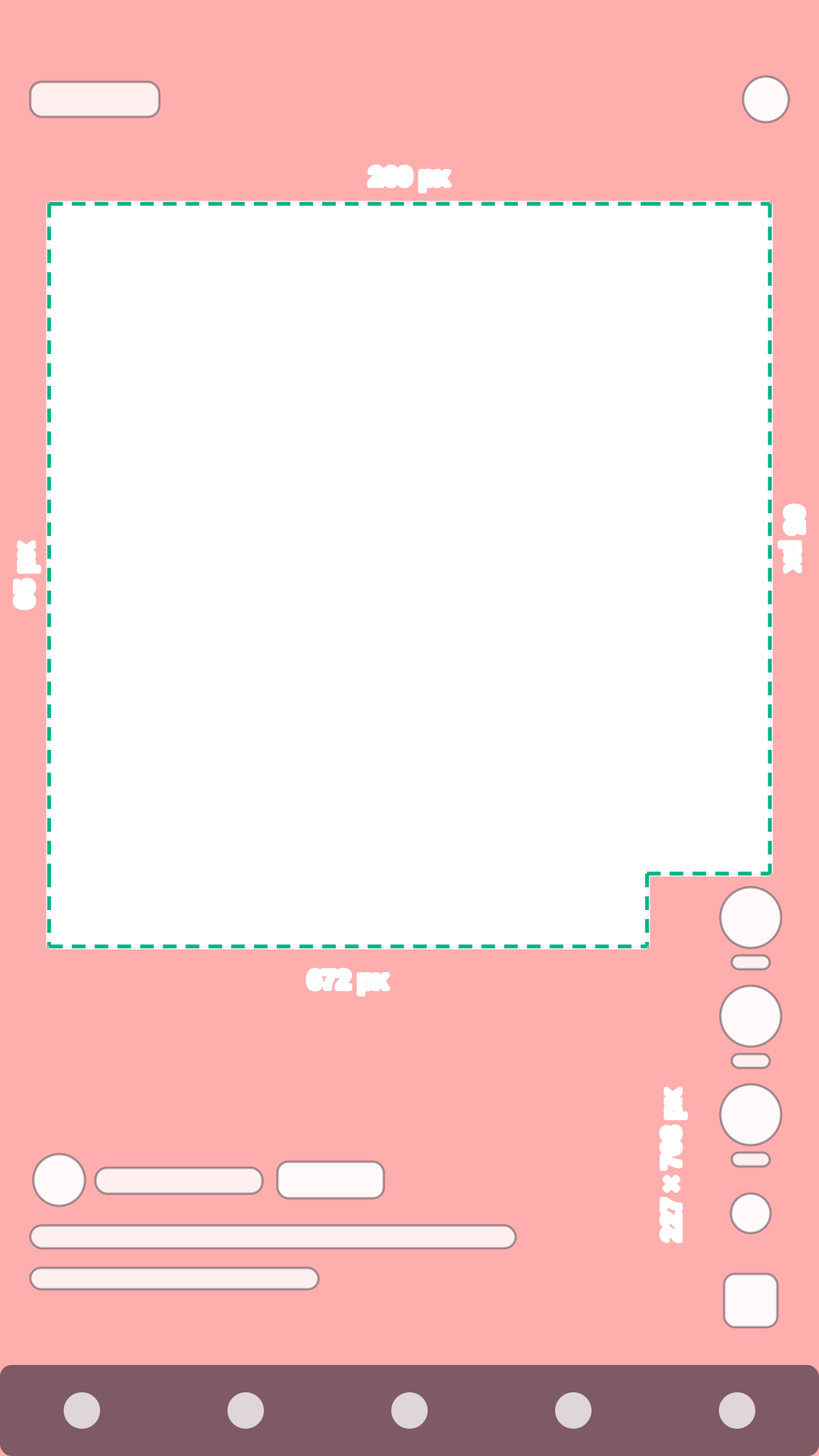
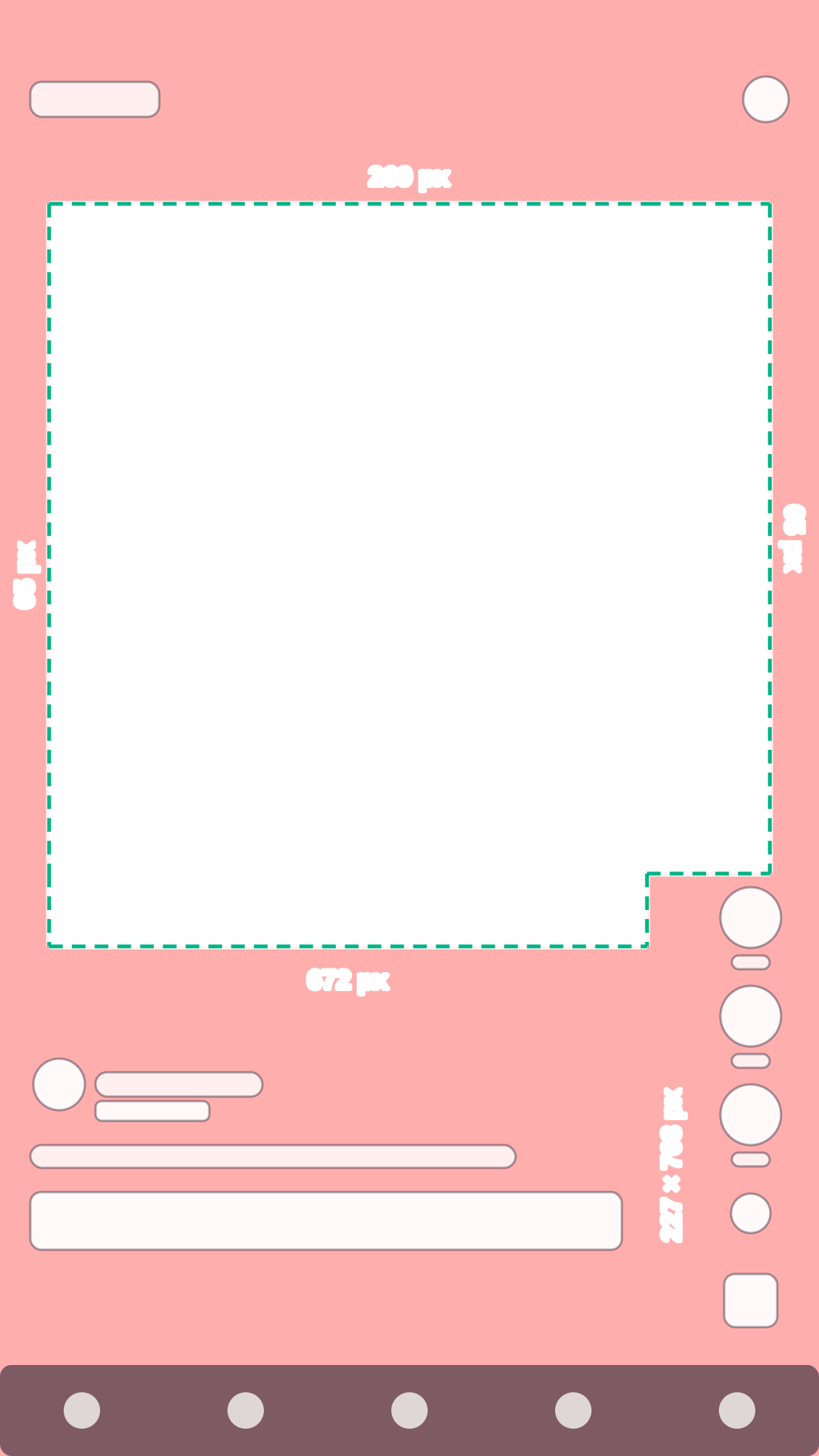
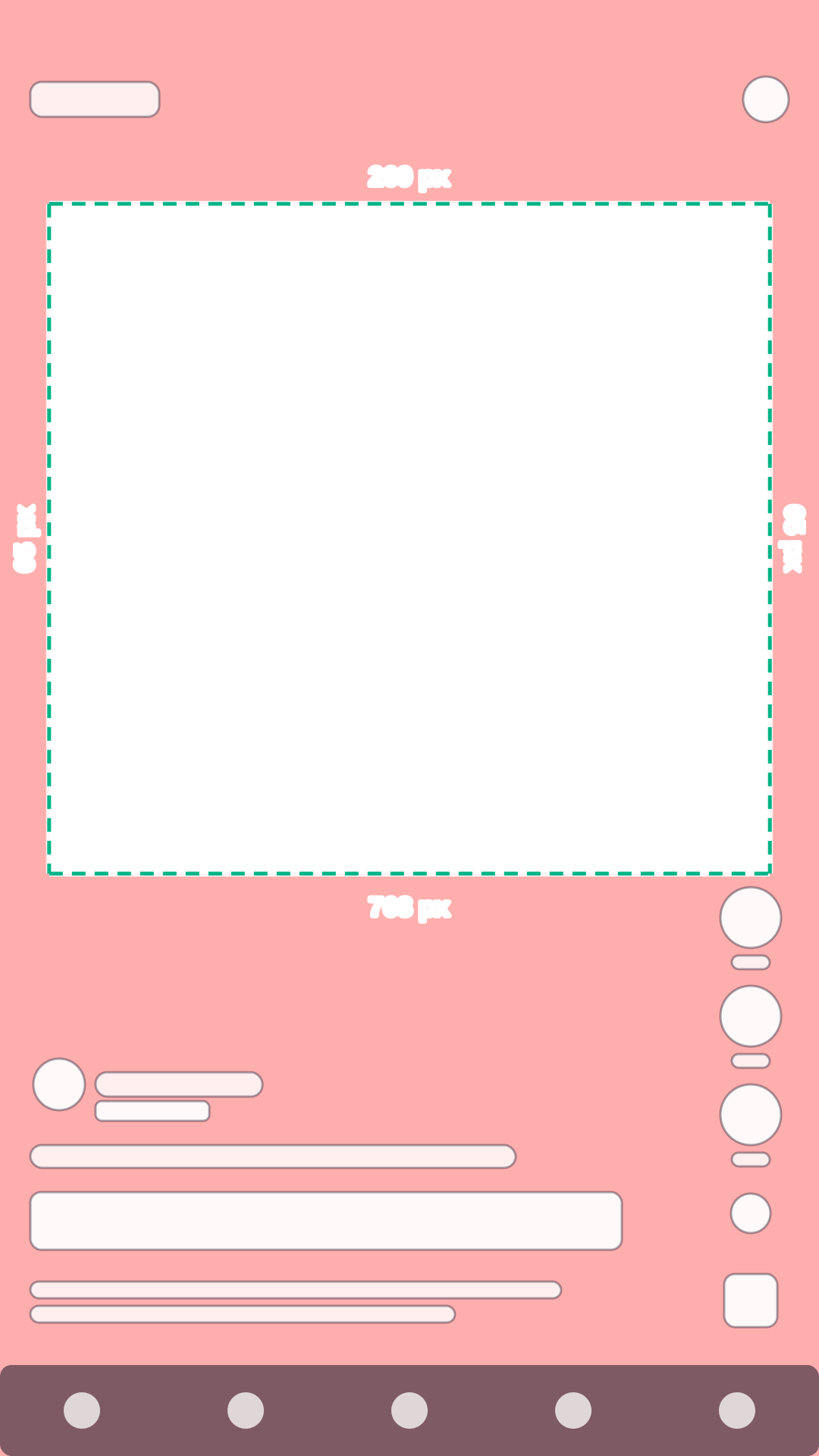
On a 1080 × 1920 Reel, keep text, logos and faces out of the top 14% (269 px), the bottom 35% (672 px) and 6% (65 px) on each side, and clear of the button column in the lower right: 21% of the width and 40% of the height (227 × 768 px). These are Meta’s official numbers for Reels and Stories ads; when an ad carries a disclaimer, keep the bottom 40% (768 px) clear.
Check your video against the Instagram Reels safe zone
Instagram places the profile row, caption, audio and buttons over the bottom and right of every Reel, and ads add a call-to-action bar. Check your footage against Meta’s numbers and download a template.
Your file stays on your device: nothing is uploaded.
Interface shapes are schematic: they show where the app’s buttons and text sit, not how they look. Red areas are the platform’s unsafe zones.
Turn on JavaScript to check your own video. The template above and the numbers below work without it.
Need videos like this for a whole catalog? Request a pilot
Instagram Reels safe zone in numbers
Pixels on a 1080 × 1920 frame and share of the frame; x and y count from the top left corner. The zone scales with any 9:16 resolution.
| Placement | Top | Bottom | Left | Right | Button column | Largest clear area |
|---|---|---|---|---|---|---|
| Organic post1 not published: ad zone | 269 px14% | 672 px35% | 65 px6% | 65 px6% | 227 × 768 pxy ≥ 1152 | 950 × 883 pxx 65–1015, y 269–1152 |
| Ad1 official | 269 px14% | 672 px35% | 65 px6% | 65 px6% | 227 × 768 pxy ≥ 1152 | 950 × 883 pxx 65–1015, y 269–1152 |
| Ad with disclaimer2 official | 269 px14% | 768 px40% | 65 px6% | 65 px6% | inside the margins | 950 × 883 pxx 65–1015, y 269–1152 |
What covers each edge
- Top: Reels header, camera
- Right side: like, comments, share, more, audio
- Bottom: profile photo, username, Follow button, caption, audio name, ad label, call-to-action button (ads), app menu bar
What to keep inside the safe zone
- LogoAt least 269 px from the top and 65 px from the side. The top strip holds the Reels header and the camera button.
- ProductCenter of the frame, above y = 1248. Below it sit the profile row, the caption and, in ads, the call-to-action bar.
- Price and offerUpper half or center, never in the bottom 35%: that is where Instagram shows the caption and the button.
- SubtitlesLast line above y = 1248. Below y = 1152, end lines before x = 853, where the like and share buttons start.
- FaceWell inside the safe area, away from the top and side edges: tall phones may zoom the video and crop them.
- DisclaimersIf the ad carries a disclaimer, Meta asks to keep the bottom 40% clear, so the lowest key line goes above y = 1152.
What else Meta says
Meta gives the safe zone in percent, so it works at any 9:16 size. The same zone applies to Reels, Stories and 9:16 video ads in the Instagram Feed.
On phones taller than 9:16, Meta may zoom the video to fill the screen and crop what lies outside the safe zone, or show it at 9:16 on a black background.
In Ads Manager you can turn on the safe zone guardrail: a yellow overlay on your creative shows where the safe zone is.
Common mistakes
- Reusing a TikTok template: Reels leave less margin on the sides, but the bottom zone is deeper and the button column has a different size.
- Key text in the lower right corner: the like, comment and share buttons cover a 227 × 768 px block there.
- Text touching the edges: on phones taller than 9:16, Meta may zoom the video and crop it.
- A call to action burned into the very bottom: in ads, Instagram’s own button sits on top of it.
Questions
What is the Instagram Reels safe zone?
Meta recommends keeping the top 14%, the bottom 35% and 6% on each side free of text, logos and key elements. On a 1080 × 1920 Reel that is 269 px at the top, 672 px at the bottom and 65 px on each side, plus a 227 × 768 px button column in the lower right.
Are the Reels and Stories safe zones the same?
For ads, yes. Meta’s Ads Guide gives the same 14% top, 35% bottom and 6% sides for Instagram Stories as for Reels, and 9:16 video ads in the Feed follow the same guidance.
Is there a safe zone for organic Reels?
Meta publishes numbers only for ads. Organic Reels show the profile row, caption, audio and buttons in the same places, without the ad label and button, so the ad zone works for both.
What changes when an ad has a disclaimer?
Meta asks to keep the bottom 40% free of text, logos and key elements, which is 768 px on a 1080 × 1920 frame. The top and the sides stay the same.
How do I see the safe zone in Meta Ads Manager?
Turn on the safe zone guardrail while creating the ad. The safe zone is the area inside the yellow overlay that appears on your creative.
Is my video uploaded anywhere?
No. The checker runs in your browser: the file opens on your device and is never sent to Quelta or anyone else.
Other platforms and tools
TikTok safe zone: template and checker
Top 240 px, bottom 660 px, 120 px on the sides and a button column. Product-link ads and the Arabic layout too.
YouTube Shorts safe zone: template and checker
Top 288 px, bottom 672 px, 48 px on the left and 192 px on the right: Google’s numbers for vertical ads.
All three platforms compared
The numbers side by side and one combined zone for a video that runs everywhere.
Video requirements by marketplace
Length, format, resolution and file size for Amazon, Etsy, TikTok Shop, Shopify and Mercado Libre, with a file check.
Sources
Every number comes from the platform’s own help page or template file. Quotes are verbatim; all sources were checked on October 24, 2026.
- Meta Ads Guide: Video ad specs on Instagram Reels, checked October 24, 2026
Consider leaving at least 14% of the top, 35% of the bottom, and 6% on each side of your asset free from text, logos, or other important creative elements. This will help ensure that key parts of your design are not cropped, covered by the profile icon or call-to-action, or placed too close to the edges of devices with screens taller than a 9:16 aspect ratio.
- Meta Business Help Center: About text overlays and the safe zone for ads on Facebook and Instagram, checked October 24, 2026
Diagram showing safe zones for text overlays in Reels and Stories ads. (labels: 6%, 6%, 14%, 35%, 40%, 21%)
- Meta Ads Guide: Video ad specs on Instagram Stories, checked October 24, 2026
Consider leaving roughly 14% of the top, 35% of the bottom, and 6% on each side of your asset free from text, logos, or other key creative elements to avoid cropping key elements or covering them with the profile icon or call-to-action.
Quelta for catalogs
Need videos like this for your whole catalog?
Quelta makes product videos from your photos, adapted for each of your markets by meaning, not just by words, and checked before delivery. Start with a pilot on one category.
Start with a pilotPrivate access
Videos for your catalog, starting with one category
Tell us about your catalog, markets and volumes. We make the first videos for one category, so you can compare them with what you have now. Then the same scenarios cover the whole catalog.
Send your products
A product feed, links to product pages or photos for one category.
Agree markets and audiences
Countries, languages, platforms, generations of buyers and the quality threshold.
Get the pilot videos
Localized for each market, checked and ready to post.
Scale to the catalog
Every product, every market and every new arrival, in one style.
We don’t copy other people’s videos. Every video is new and about your product. We keep the mechanics that sell (script, pacing, delivery), not anyone’s footage, people or music.